

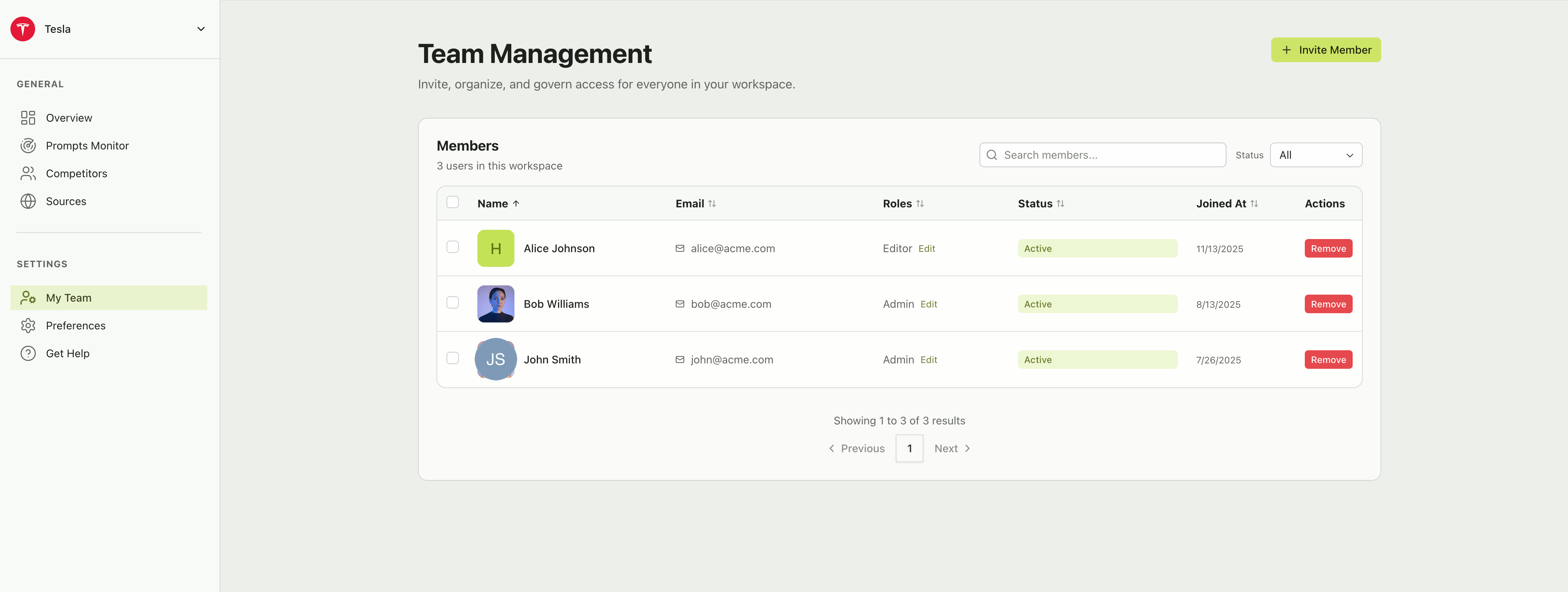
The Team Management page showing all workspace members
Members table
The members table gives you a complete view of everyone in your workspace. Each row includes:
You can sort the table by clicking any column header and filter by status using the Status dropdown at the top right. The search bar lets you quickly find members by name or email.
Inviting a new member
1
Click Invite Member
Click the + Invite Member button at the top right of the page.
2
Enter their email
Type the email address of the person you want to invite.
3
Select a role
Choose Admin, Editor, or Viewer — each role card shows a brief description, and a detailed explanation appears below your selection.
4
Send the invite
Click Send Invite. The invitee will receive an email with instructions to join your workspace.
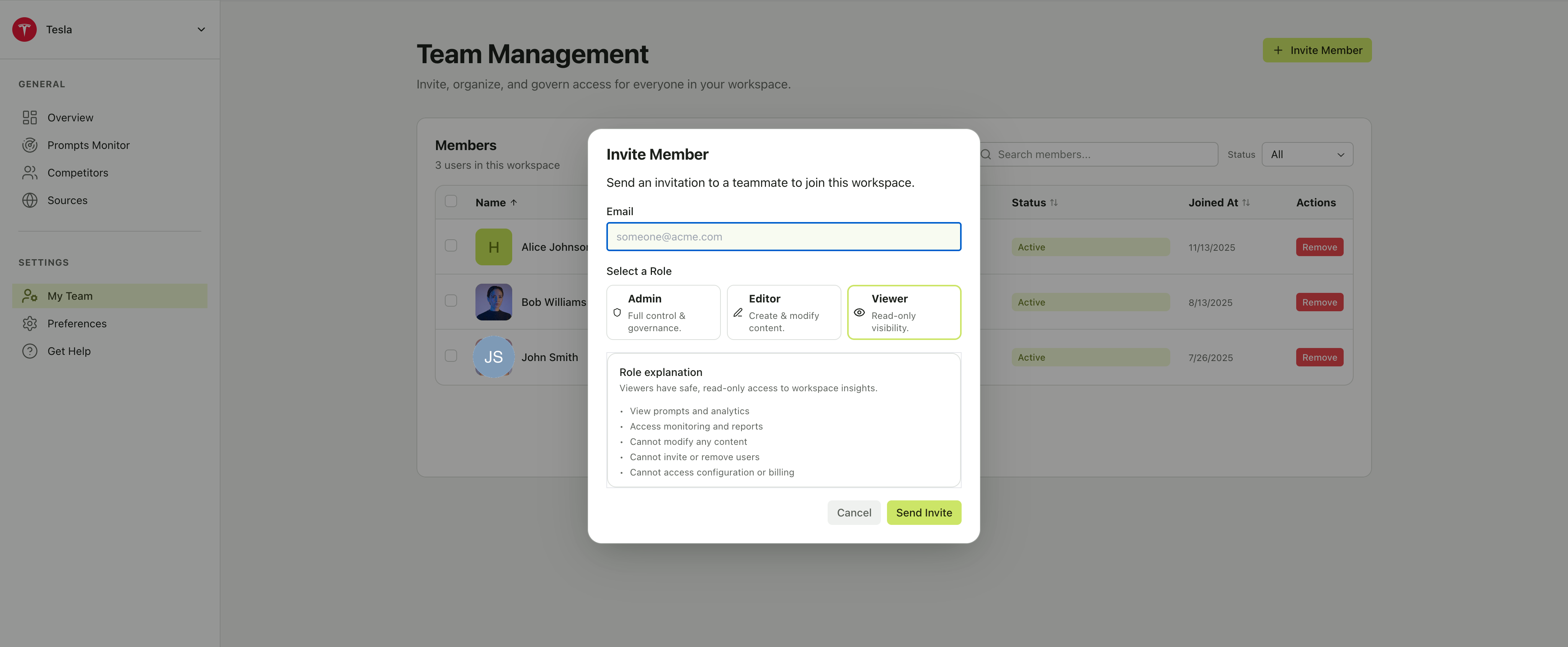
The Invite Member dialog with email field and role selection
Roles and permissions
Citivus uses three roles to control what each team member can do in your workspace. When inviting or editing a member, the role explanation panel shows exactly what each role grants.Admin
Admins have unrestricted access to manage the entire workspace.- Manage users, roles, and invitations
- Access and modify billing details
- Configure global workspace settings
- Remove any member from the workspace
- Full control over all content and data
Editor
Editors drive day-to-day content creation and management.- Create, modify, and organize prompts
- Manage brands and related assets
- Access analytics and monitoring
- Cannot access billing settings
- Cannot invite or remove users
Viewer
Viewers have safe, read-only access to workspace insights.- View prompts and analytics
- Access monitoring and reports
- Cannot modify any content
- Cannot invite or remove users
- Cannot access configuration or billing
Choose the most restrictive role that still lets the person do their job. You can always upgrade a role later using the Edit button in the members table.