

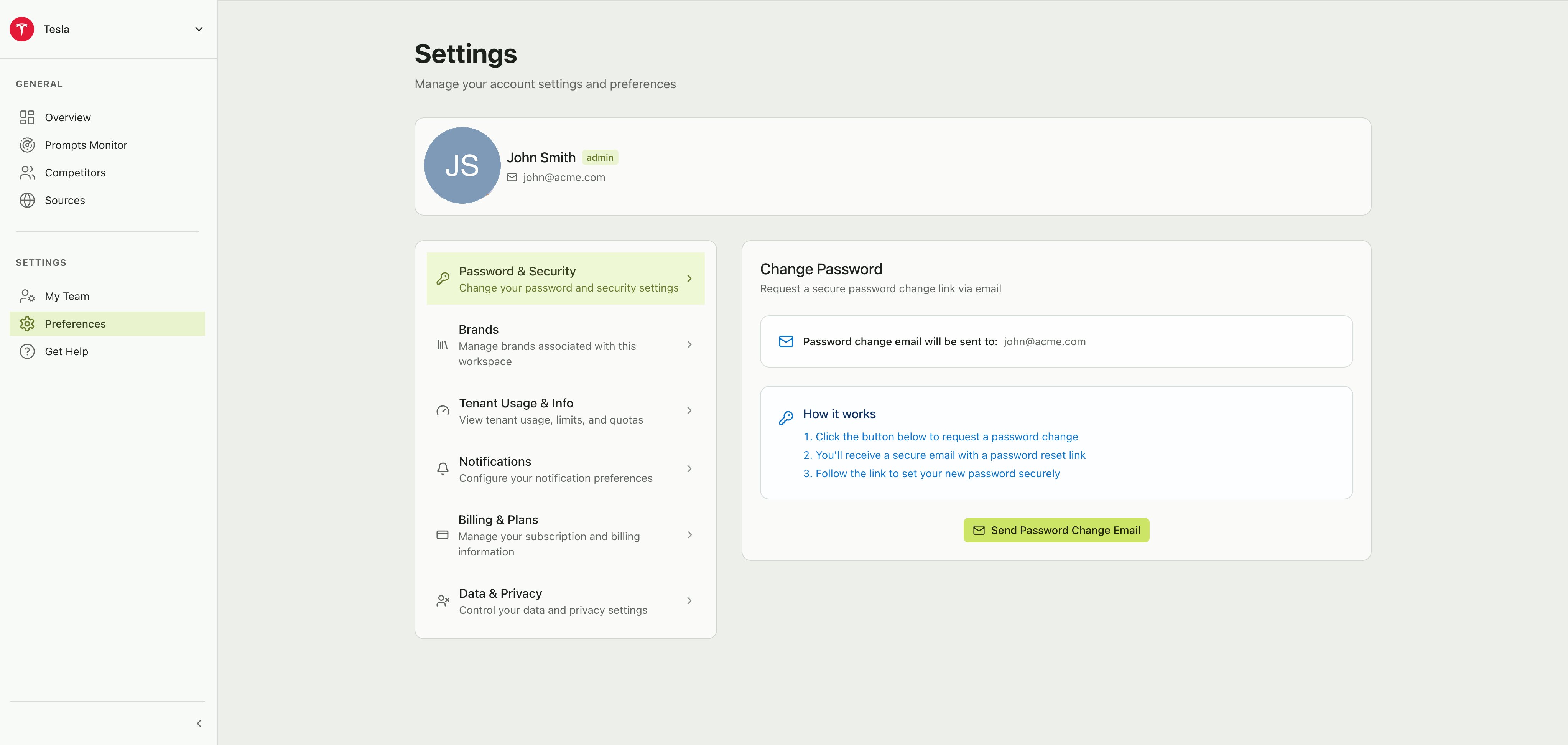
The Settings page with the left-hand section navigation and profile summary
Password & security
Request a secure password change through email. Citivus does not let you change your password directly in the app — instead, a password reset link is sent to your account email. How it works:- Click Send Password Change Email
- Check your inbox for the secure reset link
- Follow the link to set your new password
Brands
View and manage all brands associated with your workspace. Each brand card shows:- Brand name and website
- Industry classification
- Creation date
- Number of prompts and locations in use
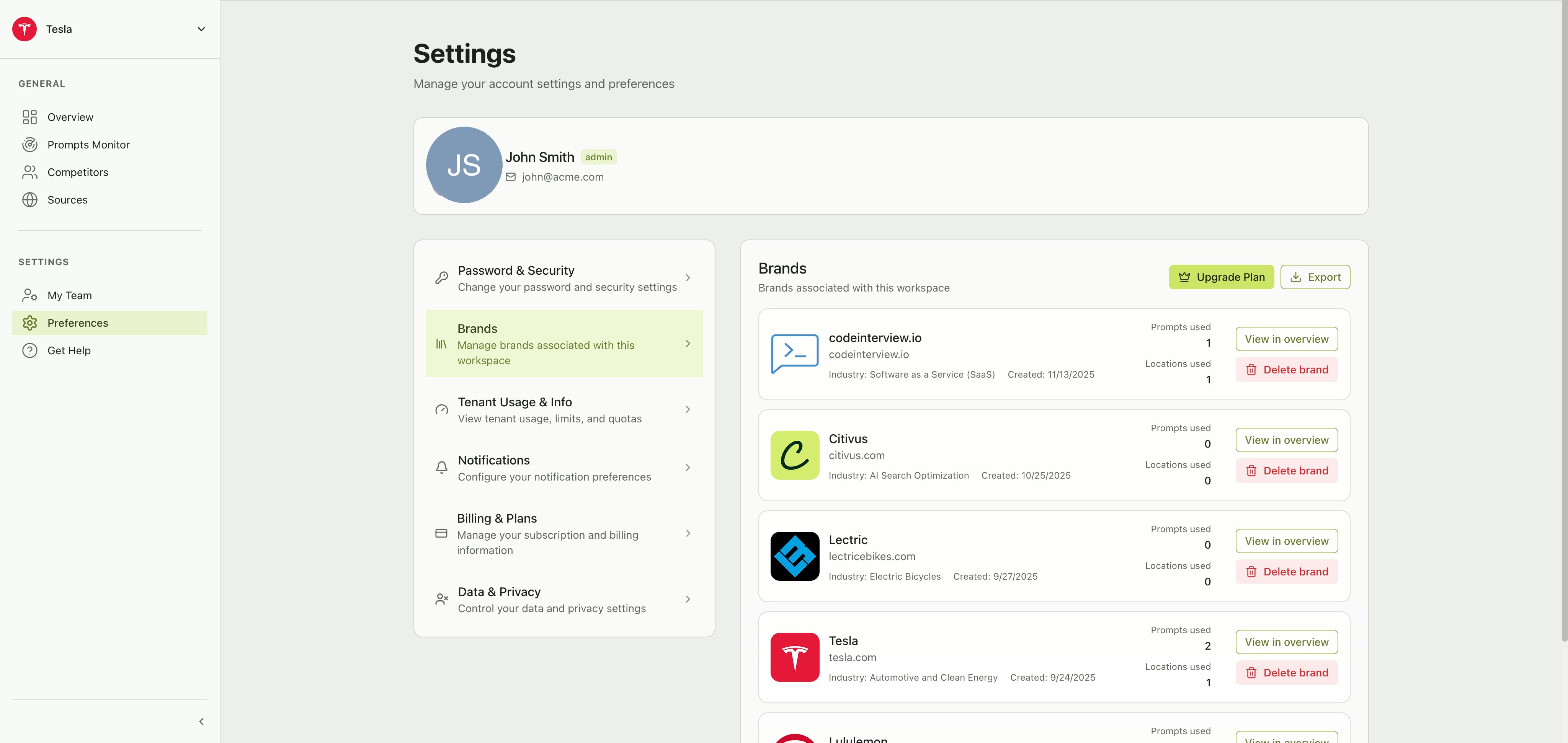
The Brands settings panel listing all workspace brands with usage stats
- View in overview — Jump directly to that brand’s Overview dashboard
- Delete brand — Permanently remove a brand and its associated data
- Export — Download your brand data
- Upgrade Plan — If you’ve reached your brand limit, upgrade to add more
Tenant usage & info
Get a snapshot of your workspace details and current usage against your subscription limits.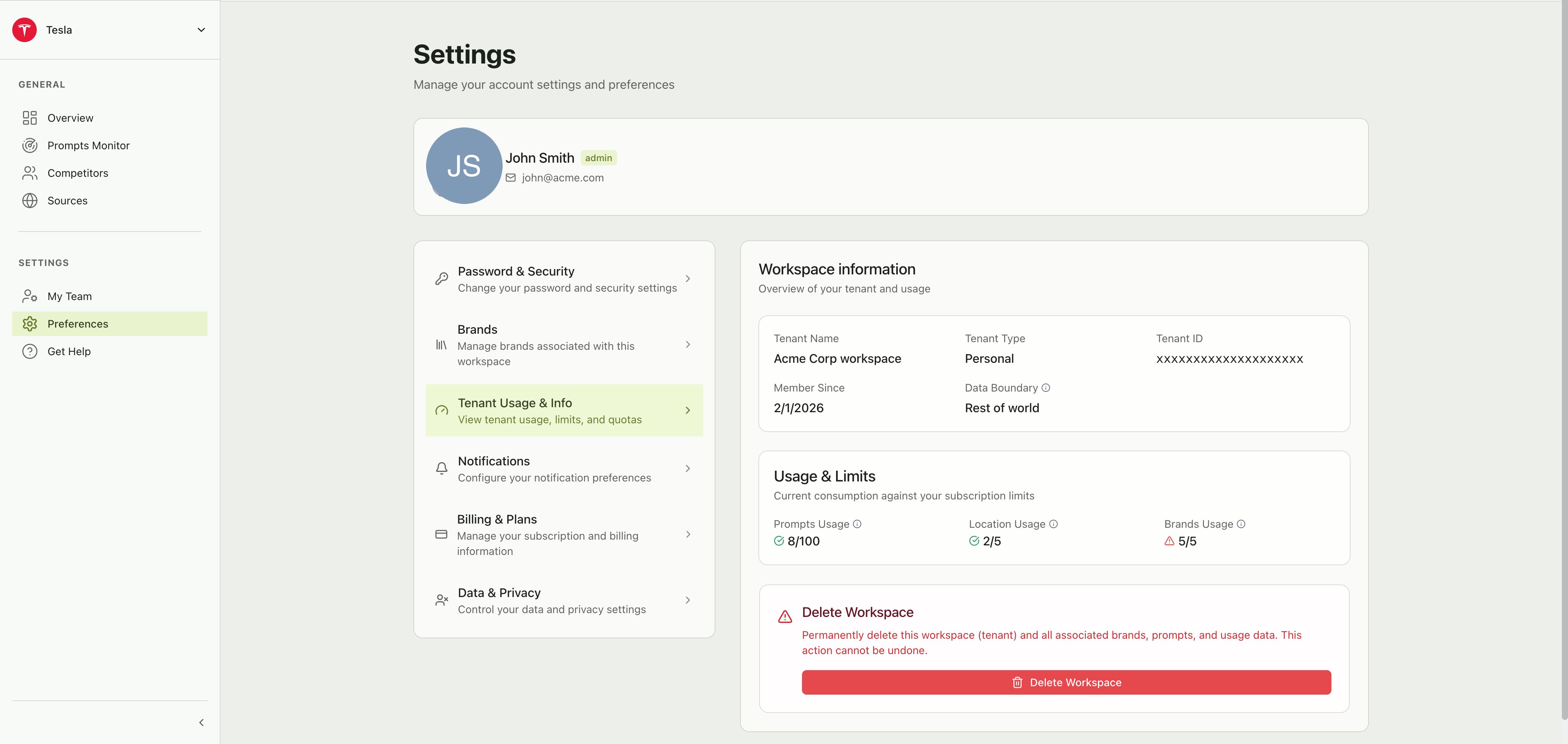
Workspace information and usage limits panel
Workspace information
Usage & limits
Three usage indicators show how much of your plan you’ve consumed:- Prompts Usage — Number of active prompts vs. your plan limit
- Location Usage — Number of monitoring locations vs. your plan limit
- Brands Usage — Number of brands vs. your plan limit
When a usage indicator turns red or shows a warning, you’re at or near your limit. Consider upgrading your plan or removing unused resources.
Delete workspace
At the bottom of this section is the Delete Workspace option. This permanently deletes the entire workspace (tenant) and all associated brands, prompts, and usage data.Notifications
Configure which email notifications you receive from Citivus.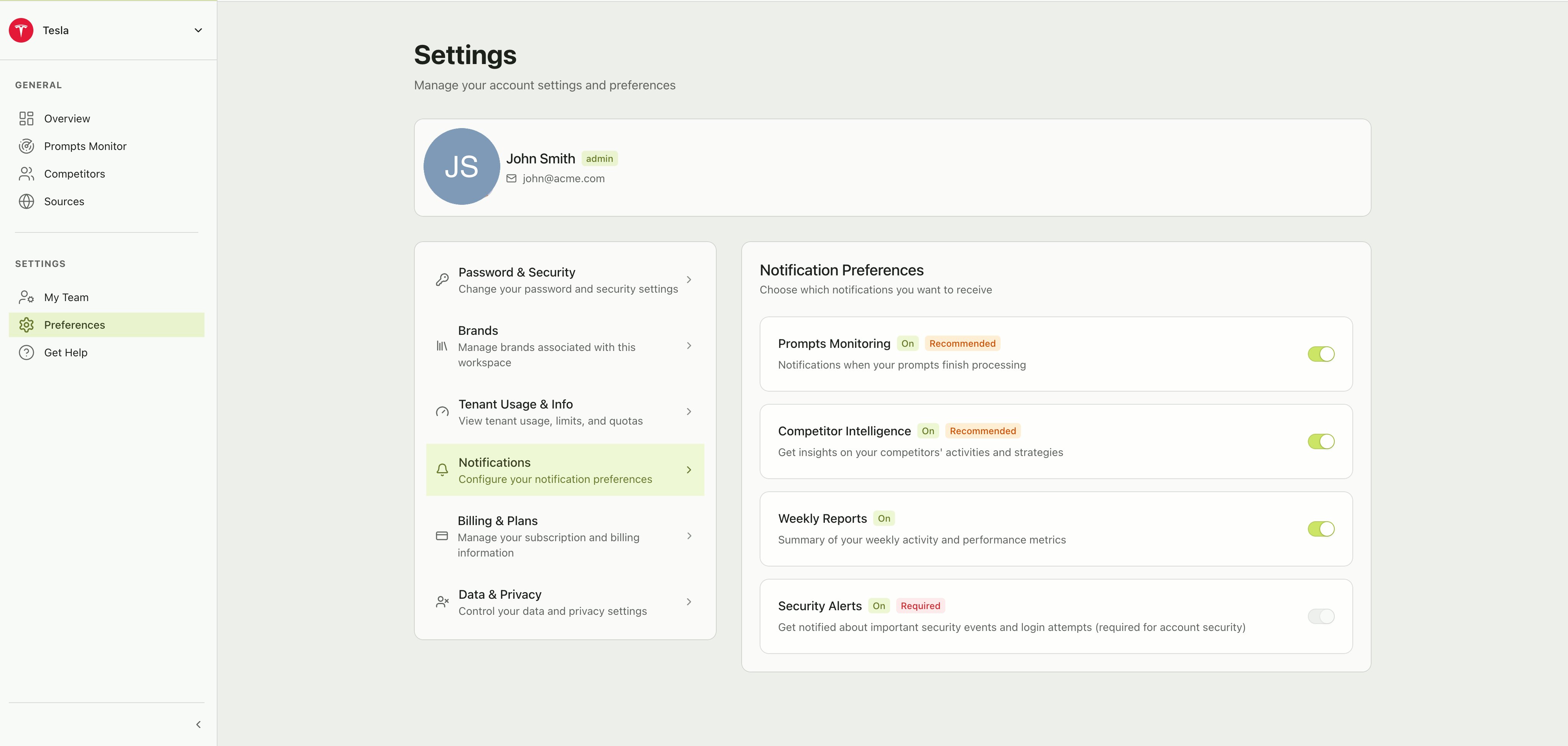
Notification preferences with toggle switches for each notification type
Toggle each notification on or off using the switch. Security Alerts are always enabled to protect your account.
Billing & plans
Manage your subscription, payment methods, and view billing history.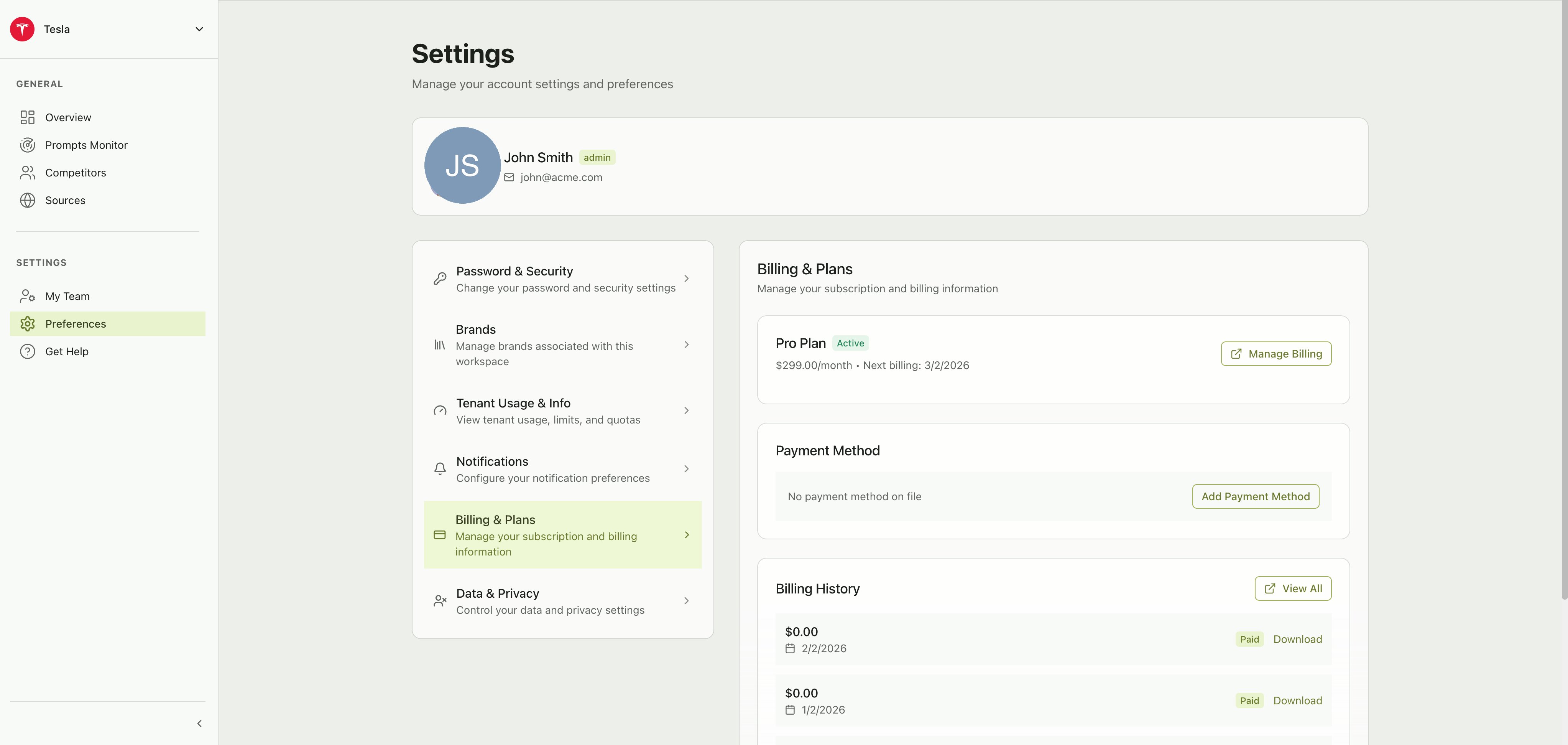
Billing & Plans showing current plan, payment method, and invoice history
Current plan
Shows your active subscription plan, monthly cost, and next billing date. Click Manage Billing to open the billing portal where you can upgrade, downgrade, or cancel your plan.Payment method
View or update the payment method on file. Click Add Payment Method to add a credit card or other payment option.Billing history
A list of past invoices with the date, amount, payment status, and a Download button to save each invoice. Click View All to see the complete history.Data & privacy
Control how your data is used and manage your privacy preferences.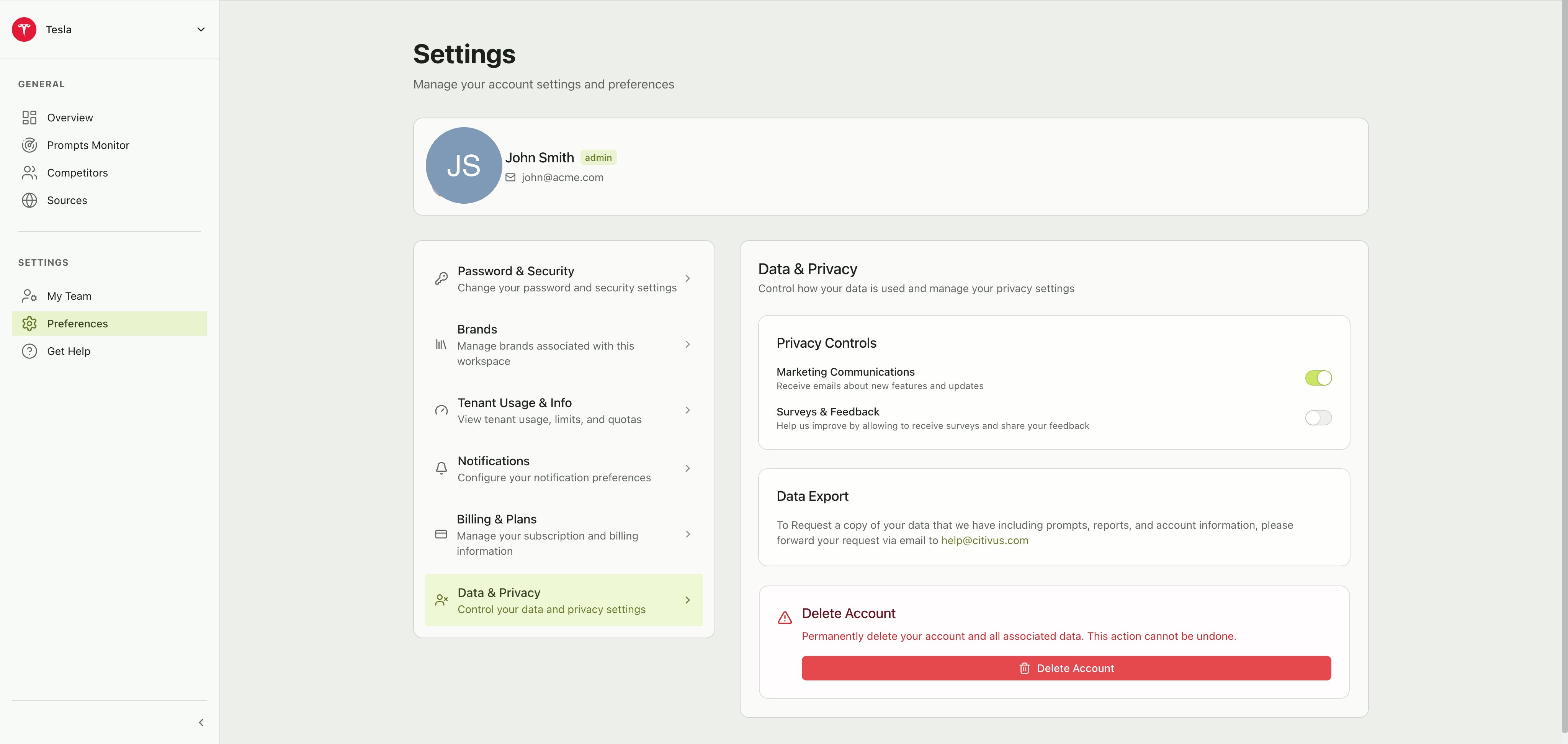
Data & Privacy settings with privacy toggles, data export info, and delete account option
Privacy controls
Toggle each setting on or off as you prefer.