

Managing multiple brands
Citivus supports multiple brands within a single workspace. This is ideal if you:- Manage multiple products or sub-brands under one company
- Want to monitor different aspects of your business separately
- Need to track parent brand and individual product lines
Switching between brands
The brand selector is located at the top of the sidebar. Click it to switch between your brands — all dashboard data, prompts, competitors, and sources update instantly to reflect the selected brand.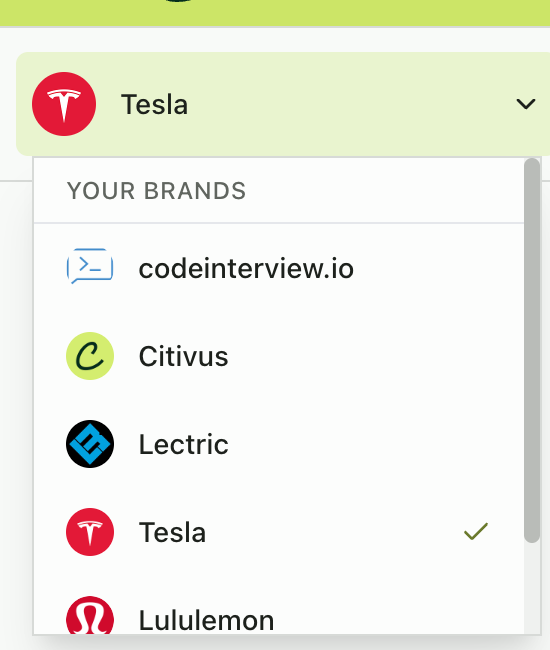
The brand selector dropdown showing all workspace brands
Adding a new brand
To add a brand after initial onboarding:1
Open the brand selector
Click the brand selector in the sidebar and select “Add Brand”.
2
Enter brand details
Provide your brand name, website, and country.
3
Select prompts
Review and select AI-suggested prompts (limited by your plan’s remaining prompt slots).
4
Select competitors
Review and select AI-identified competitors.
5
Confirmation
Insights begin generating within 2-3 minutes.
Brand limits are governed by your subscription plan. Each plan allows a specific number of brands. Check your current usage under Preferences > Tenant Usage & Info.
Organizing prompts with categories
As your prompt library grows, categories help you group related prompts for easier filtering and analysis. On the Prompts Monitor page, use the “All Categories” dropdown to filter prompts by category. Categories let you quickly focus on specific topic areas — like product comparisons, brand reputation, or purchase intent.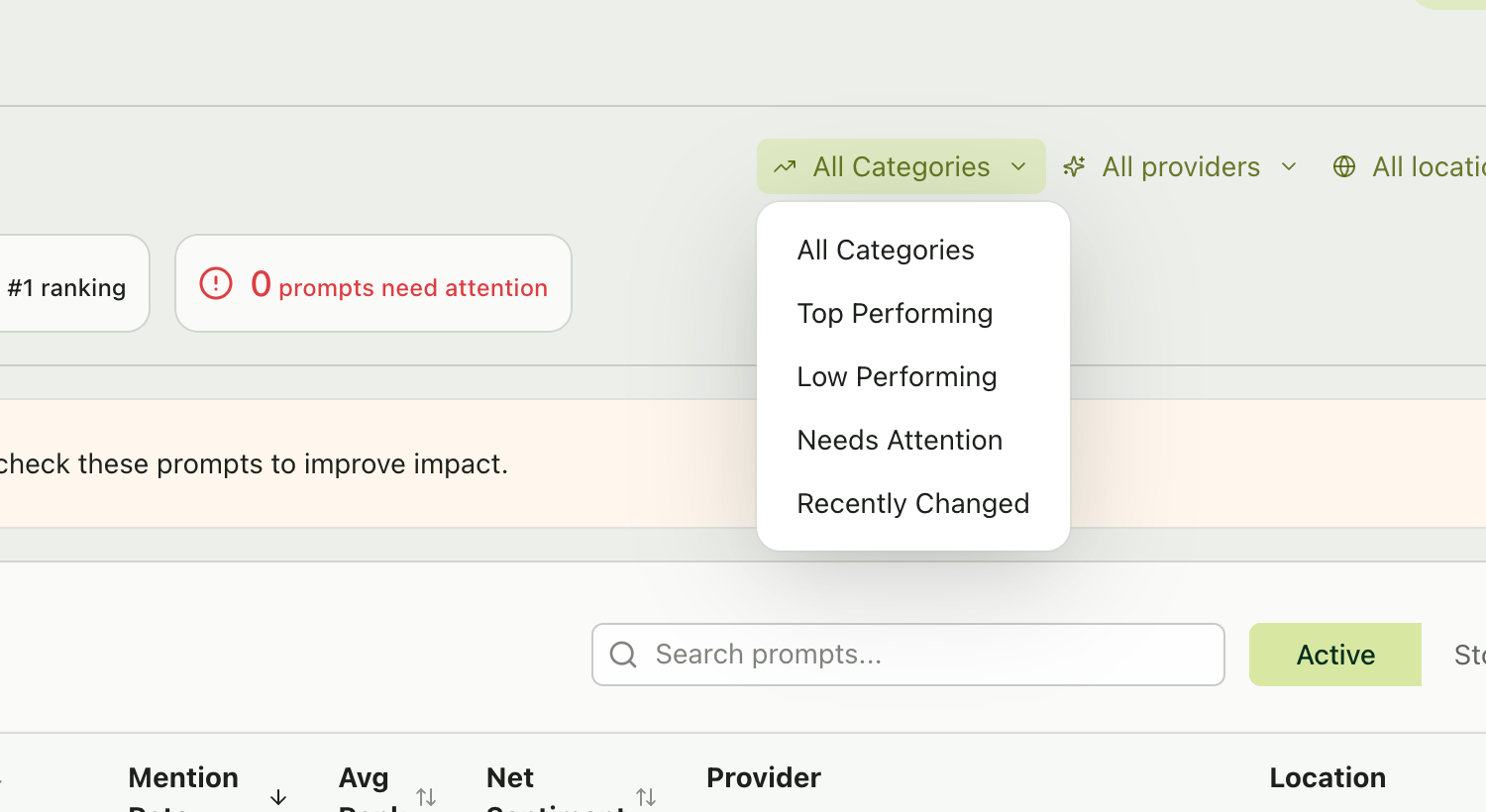
The categories dropdown with filter options for prompt performance
Choosing your locations
Citivus lets you run prompts from specific geographic locations. This matters because AI responses vary by region — a prompt asked from the US may produce different brand mentions and rankings than the same prompt asked from the UK. You can filter by location across all main pages:- Overview — See metrics for specific locations
- Prompts Monitor — Filter the prompt table by location
- Sources — View which sources are cited in specific regions
Setting up your time ranges
Every data page in Citivus offers time range filters that let you control the analysis window:Provider filtering
Not all AI providers behave the same way. ChatGPT might mention your brand consistently while Perplexity may favor competitors. Use the provider filter (available on Overview, Prompts Monitor, and Sources) to isolate performance by platform. This helps you answer questions like:- “Which AI platform is most favorable to my brand?”
- “Where should I focus my optimization efforts?”
- “Are there platform-specific content gaps I need to address?”
Workspace roles and access
If you’re working with a team, understanding roles helps you organize who does what:
You can manage roles from My Team in the sidebar.
Best practices for setup organization
Start focused, then expand
Start focused, then expand
- Begin with 5-10 prompts for your primary brand
- Add competitors as you discover who appears alongside you
- Expand to more prompts and additional brands over time
Review and prune regularly
Review and prune regularly
- Stop prompts that consistently show 0% mention rate after 30 days — they may not be relevant queries
- Update prompt wording if you notice AI models responding differently to slight variations
- Remove competitors who consistently show 0% visibility — they may not be relevant to your space in AI
Establish a rhythm
Establish a rhythm
- Check your dashboard daily for new insights
- Do a deep-dive on prompts weekly to spot trends
- Run a full competitor review monthly