

Sidebar structure
Brand selector
At the very top of the sidebar, below the Citivus logo, is the brand selector. This dropdown shows your currently active brand and lets you switch between brands if you monitor more than one.- Click the brand selector to see all your brands
- Selecting a different brand immediately updates all dashboard data
- You can also add a new brand from here
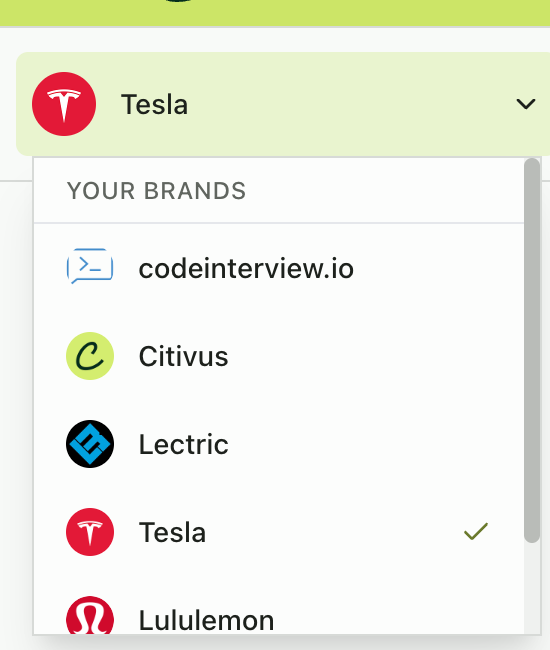
The brand selector dropdown in the sidebar
General section
These are your core analytics pages:Settings section
Account management and configuration pages:Page details
Overview
Overview
The command center for your brand’s AI presence. See the Understanding your performance guide for a complete walkthrough.
- Five metric cards (Mention Rate, Net Sentiment, Total Mentions, Citations, Unique Sources)
- Visibility score time-series chart
- Competitive ranking table
- AI providers performance breakdown
- Prompt performance (Top Performing / Needs Attention)
- Source breakdown bar chart
Prompts Monitor
Setting up your prompts
Your prompt management and analysis hub. See the setup guide for detailed guidance.
- Smart insights carousel — AI-generated observations about your prompt performance
- New insights countdown — Shows when the next batch of data will arrive
- Summary statistics — Active/inactive prompt counts, aggregate mention rate, ranking achievements, prompts needing attention
- Prompt table — Sortable columns: Prompt Details, Status, Mention Rate, Avg Rank, Net Sentiment, Provider, Location, Actions
- Active/stopped toggle — Switch between active and paused prompts
- Search and filters — Find specific prompts by text, category, provider, or location
- New prompt button — Add new prompts to your monitoring
- Export — Download prompt data
Prompt metadata and metrics
Prompt metadata and metrics
- Status, total responses, last run, frequency
- Mention rate, avg rank, net sentiment, total mentions, providers
Prompt ranking table
Prompt ranking table
Your brand vs. all brands mentioned in responses for this prompt.
Performance breakdown
Performance breakdown
Share of voice, mention rate, and location analysis with charts.
Latest AI responses
Latest AI responses
Tabbed view of the most recent response per provider.
Recent insights
Recent insights
Expandable daily response cards with full chat details.
Citation sources overview
Citation sources overview
Bar chart of most-cited domains for this prompt.
Competitors
Identifying your competitors
Competitive intelligence and threat detection. See the setup guide for detailed guidance.
- Competitors
- Emerging threats
- Competitor table with columns: Competitor (with co-mentions), Avg Rank, Mentions, Citations, Share of Voice, Growth, Threat Level, Actions
- Add Competitor button
- Export functionality
Sources
Understanding sources
Source and citation analytics. See the guide for detailed guidance.
- Citations breakdown horizontal bar chart
- Four metric cards (Total Unique Domains, Total URLs, My Brand Citations, Top Domain)
- Domains tab — Table with: # Citations, Domain, URLs count, Mentions indicator, Competition Mentions, Share of Voice
- URLs tab — Same structure but at the individual page level
- Pagination for large datasets
- Search and Export
My Team
Workspace member management:- Invite member button — Send email invitations to new team members
- Members table — Columns: Name, Email, Roles, Status, Joined At, Actions
- Role management — Edit button to change member roles (Admin/Editor)
- Member removal — Remove button to revoke workspace access
- Status filtering — Filter by Active, Pending, etc.
- Search — Find members by name or email
Preferences
Your account settings hub with six sub-sections:Top header bar
Across the top of every page, you’ll find:- Dark/light mode toggle — Switch between the theme modes for comfortable viewing
- User profile dropdown — Shows your name and email, with access to profile and logout options