> ## Documentation Index
> Fetch the complete documentation index at: https://docs.citivus.com/llms.txt
> Use this file to discover all available pages before exploring further.
# Quickstart
> Get your brand monitored in AI search results in under 10 minutes.
This guide walks you through the essential setup steps so you can start tracking your brand's presence in AI-generated responses right away. By the end, you'll have your first prompts running and your dashboard populating with real data.
When you first sign up for Citivus, the onboarding wizard guides you through setting up your brand profile.
You'll provide:
* **Brand name** — The name of your brand as it appears publicly (e.g., "Tesla", "Nike", "Shopify")
* **Brand website** — Your brand's primary URL (e.g., `https://www.tesla.com`)
* **Country** — Your primary market location, which determines where AI prompts are run from
**Individual vs. agency accounts** — Currently, Citivus supports Individual accounts. Agency accounts with multi-client management are coming soon.
The system analyzes your website automatically to understand your brand, industry, and products. This powers the AI-generated prompt suggestions in the next step.
After entering your brand details, Citivus **analyzes your website** and generates a list of strategic prompts — real questions that your potential customers are asking AI assistants.
Review the suggested prompts and select the ones most relevant to your business. You need at least one prompt, but we recommend starting with **5-10 prompts** for comprehensive coverage.
Example prompts for an electric vehicle brand:
* "Which electric vehicle is best for long range drive in USA?"
* "What are the best EV to buy after federal tax credit has ended?"
* "Best luxury electric SUV for families"
Don't worry about getting them perfect right now. You can always add, modify, or remove prompts later from the Prompts Monitor page. Focus on picking prompts that represent the types of questions your ideal customers would ask an AI assistant.
You can also **add custom prompts** if the suggestions don't cover a specific angle you're interested in.
Once your prompts are selected, Citivus runs an initial analysis and generates a **brand snapshot** — a preview of your brand's current position in AI search results.
The snapshot shows you:
* **Total mentions** — How many times your brand appeared across all prompts
* **Total citations** — How many source URLs were cited in responses mentioning your brand
* **Industry ranking** — How your brand ranks against auto-detected competitors
* **Top sources** — Which domains AI assistants reference most often
* **Recent chats** — A preview of actual AI responses with your brand's mention status
Some metrics appear locked in the snapshot. This is by design — the full dashboard unlocks after you complete onboarding and your subscription activates.
Citivus offers subscription plans with a **7-day free trial**. Select the plan that matches your monitoring needs — you can always upgrade later.
After selecting your plan, you'll be redirected to a secure Stripe checkout to complete payment setup. Your trial begins immediately, and you won't be charged until the trial period ends.
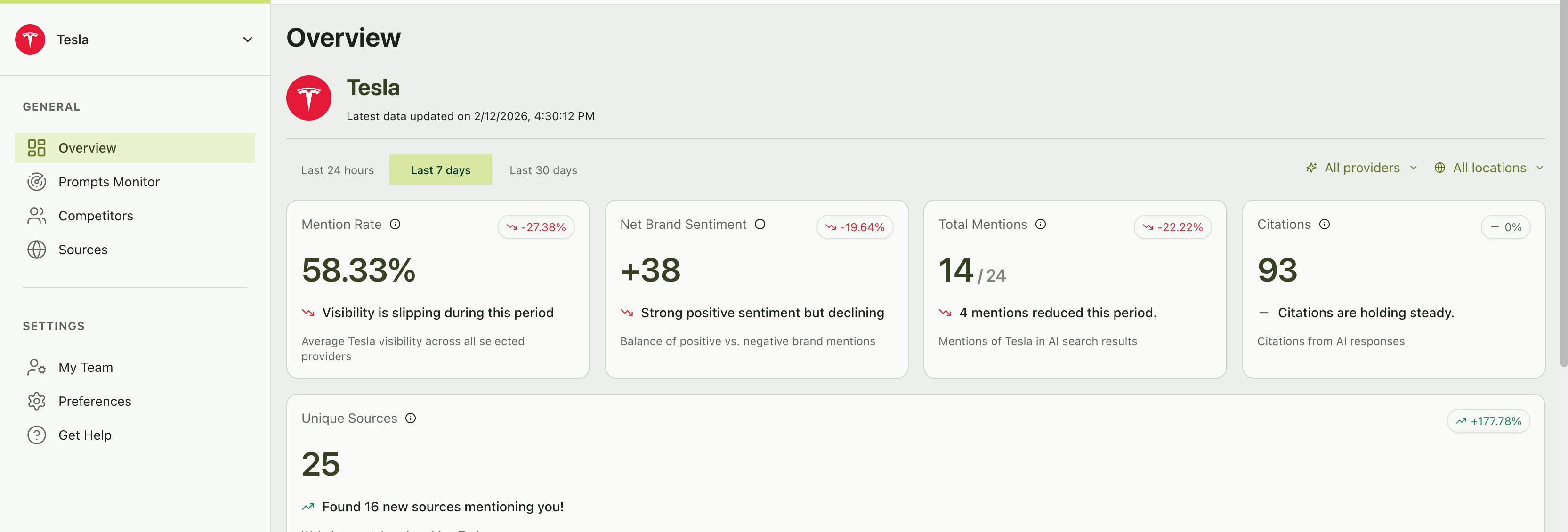
Once onboarding is complete, you'll land on the **Overview** page — your brand's command center.
**Key metrics at the top:**
| Metric | What it shows |
| ----------------------- | ------------------------------------------------------ |
| **Mention rate** | % of AI responses that include your brand |
| **Net brand sentiment** | Balance of positive vs. negative mentions |
| **Total mentions** | Count of responses where your brand appeared |
| **Citations** | Total number of source citations across all responses |
| **Unique sources** | Number of distinct websites cited alongside your brand |
 Below the metrics, you'll find:
* **Visibility score chart** — A time-series chart tracking your brand's visibility alongside your competitors over time
* **Ranking table** — A leaderboard comparing your brand to competitors by visibility score, change percentage, and net sentiment
* **AI providers performance** — See which AI platforms mention you most
* **Prompt performance** — Quickly identify your top-performing and underperforming prompts
* **Source breakdown** — View which websites appear most frequently when your brand is mentioned
## What's next?
Now that you're set up, dive deeper into each area:
Learn how to craft effective prompts and manage your prompt library.
Add competitors and understand the Emerging Threats feature.
Master the Overview dashboard and performance metrics.
Discover which websites drive AI recommendations in your space.
Your prompts run automatically every day. Check back tomorrow to see your first full day of tracking data and watch your trends start forming.
Below the metrics, you'll find:
* **Visibility score chart** — A time-series chart tracking your brand's visibility alongside your competitors over time
* **Ranking table** — A leaderboard comparing your brand to competitors by visibility score, change percentage, and net sentiment
* **AI providers performance** — See which AI platforms mention you most
* **Prompt performance** — Quickly identify your top-performing and underperforming prompts
* **Source breakdown** — View which websites appear most frequently when your brand is mentioned
## What's next?
Now that you're set up, dive deeper into each area:
Learn how to craft effective prompts and manage your prompt library.
Add competitors and understand the Emerging Threats feature.
Master the Overview dashboard and performance metrics.
Discover which websites drive AI recommendations in your space.
Your prompts run automatically every day. Check back tomorrow to see your first full day of tracking data and watch your trends start forming.