> ## Documentation Index
> Fetch the complete documentation index at: https://docs.citivus.com/llms.txt
> Use this file to discover all available pages before exploring further.
# Settings & preferences
> Manage your account security, brands, usage limits, notifications, billing, and privacy — all in one place.
The **Settings** page is your account management hub. Access it from **Settings > Preferences** in the sidebar. It shows your profile summary at the top and organizes configuration into six sections via a left-hand navigation panel.
 ## Password & security
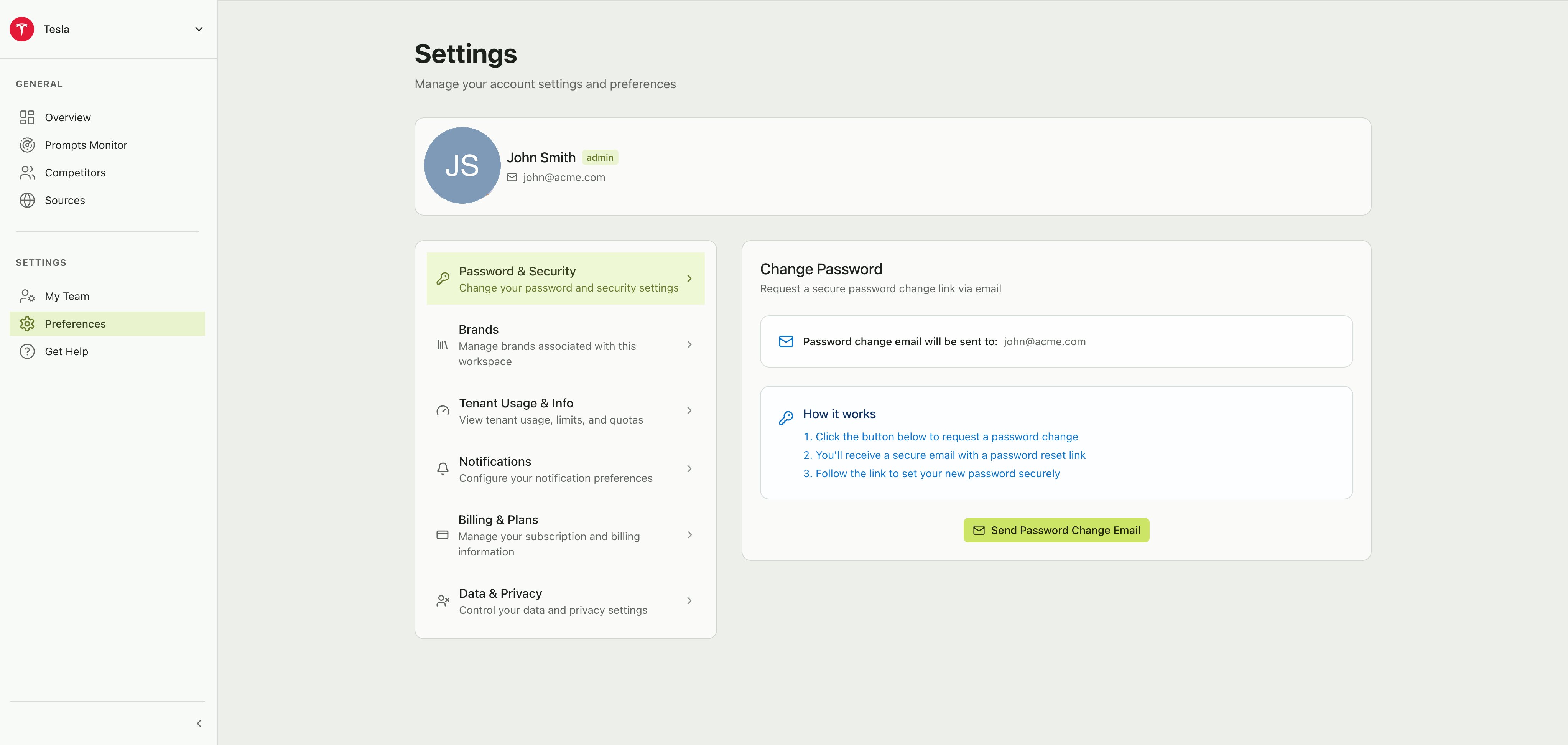
Request a secure password change through email. Citivus does not let you change your password directly in the app — instead, a password reset link is sent to your account email.
**How it works:**
1. Click **Send Password Change Email**
2. Check your inbox for the secure reset link
3. Follow the link to set your new password
## Brands
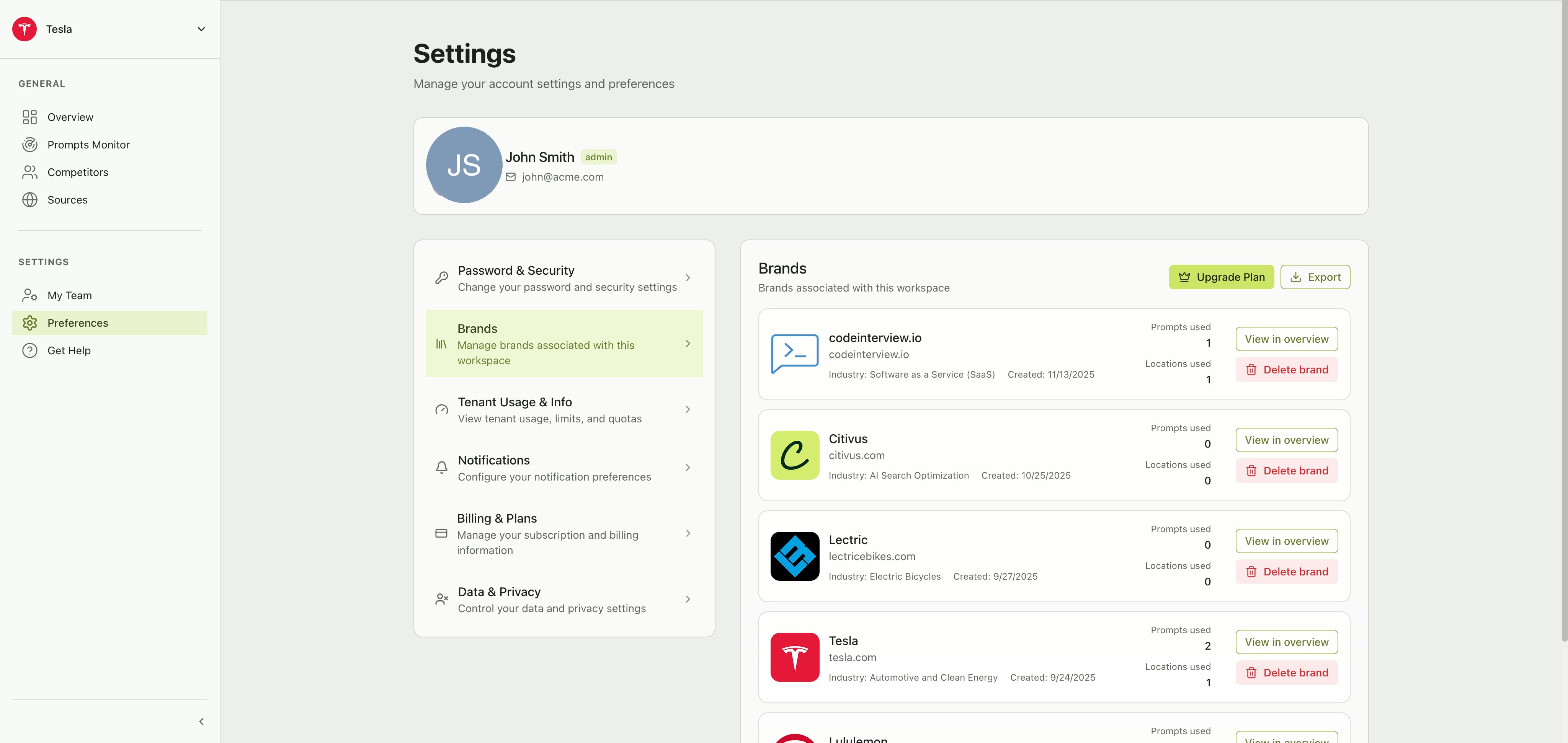
View and manage all brands associated with your workspace. Each brand card shows:
* Brand name and website
* Industry classification
* Creation date
* Number of prompts and locations in use
## Password & security
Request a secure password change through email. Citivus does not let you change your password directly in the app — instead, a password reset link is sent to your account email.
**How it works:**
1. Click **Send Password Change Email**
2. Check your inbox for the secure reset link
3. Follow the link to set your new password
## Brands
View and manage all brands associated with your workspace. Each brand card shows:
* Brand name and website
* Industry classification
* Creation date
* Number of prompts and locations in use
 From this section you can:
* **View in overview** — Jump directly to that brand's Overview dashboard
* **Delete brand** — Permanently remove a brand and its associated data
* **Export** — Download your brand data
* **Upgrade Plan** — If you've reached your brand limit, upgrade to add more
Deleting a brand removes all its prompts, competitors, sources, and historical data. This action cannot be undone.
## Tenant usage & info
Get a snapshot of your workspace details and current usage against your subscription limits.
From this section you can:
* **View in overview** — Jump directly to that brand's Overview dashboard
* **Delete brand** — Permanently remove a brand and its associated data
* **Export** — Download your brand data
* **Upgrade Plan** — If you've reached your brand limit, upgrade to add more
Deleting a brand removes all its prompts, competitors, sources, and historical data. This action cannot be undone.
## Tenant usage & info
Get a snapshot of your workspace details and current usage against your subscription limits.
 ### Workspace information
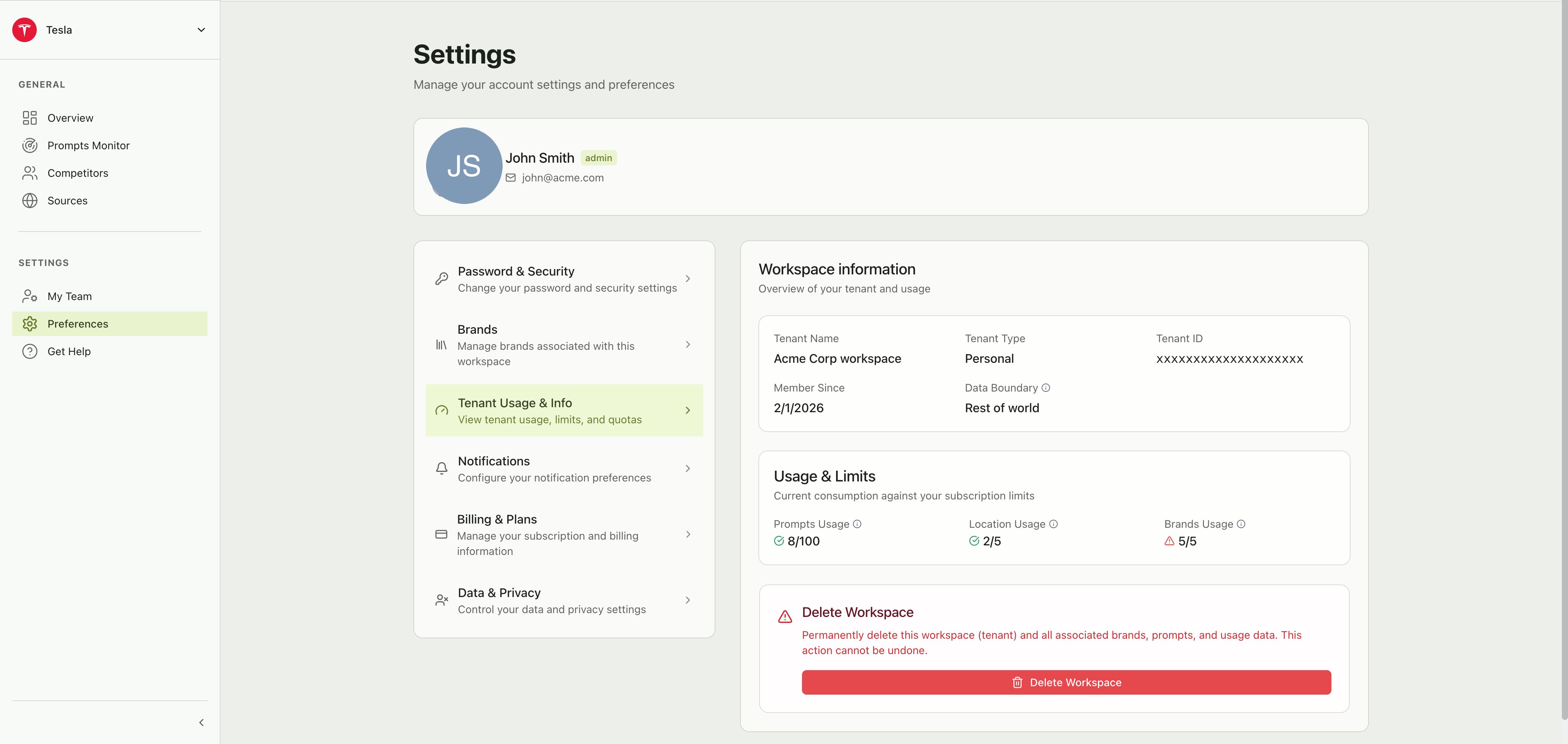
| Field | Description |
| ----------------- | -------------------------------------------- |
| **Tenant Name** | Your workspace display name |
| **Tenant Type** | The type of workspace (e.g., Personal) |
| **Tenant ID** | Your unique workspace identifier |
| **Member Since** | The date your workspace was created |
| **Data Boundary** | The data residency region for your workspace |
### Usage & limits
Three usage indicators show how much of your plan you've consumed:
* **Prompts Usage** — Number of active prompts vs. your plan limit
* **Location Usage** — Number of monitoring locations vs. your plan limit
* **Brands Usage** — Number of brands vs. your plan limit
When a usage indicator turns red or shows a warning, you're at or near your limit. Consider upgrading your plan or removing unused resources.
### Delete workspace
At the bottom of this section is the **Delete Workspace** option. This permanently deletes the entire workspace (tenant) and all associated brands, prompts, and usage data.
Deleting a workspace is irreversible. All brands, prompts, team members, and historical data will be permanently removed.
## Notifications
Configure which email notifications you receive from Citivus.
### Workspace information
| Field | Description |
| ----------------- | -------------------------------------------- |
| **Tenant Name** | Your workspace display name |
| **Tenant Type** | The type of workspace (e.g., Personal) |
| **Tenant ID** | Your unique workspace identifier |
| **Member Since** | The date your workspace was created |
| **Data Boundary** | The data residency region for your workspace |
### Usage & limits
Three usage indicators show how much of your plan you've consumed:
* **Prompts Usage** — Number of active prompts vs. your plan limit
* **Location Usage** — Number of monitoring locations vs. your plan limit
* **Brands Usage** — Number of brands vs. your plan limit
When a usage indicator turns red or shows a warning, you're at or near your limit. Consider upgrading your plan or removing unused resources.
### Delete workspace
At the bottom of this section is the **Delete Workspace** option. This permanently deletes the entire workspace (tenant) and all associated brands, prompts, and usage data.
Deleting a workspace is irreversible. All brands, prompts, team members, and historical data will be permanently removed.
## Notifications
Configure which email notifications you receive from Citivus.
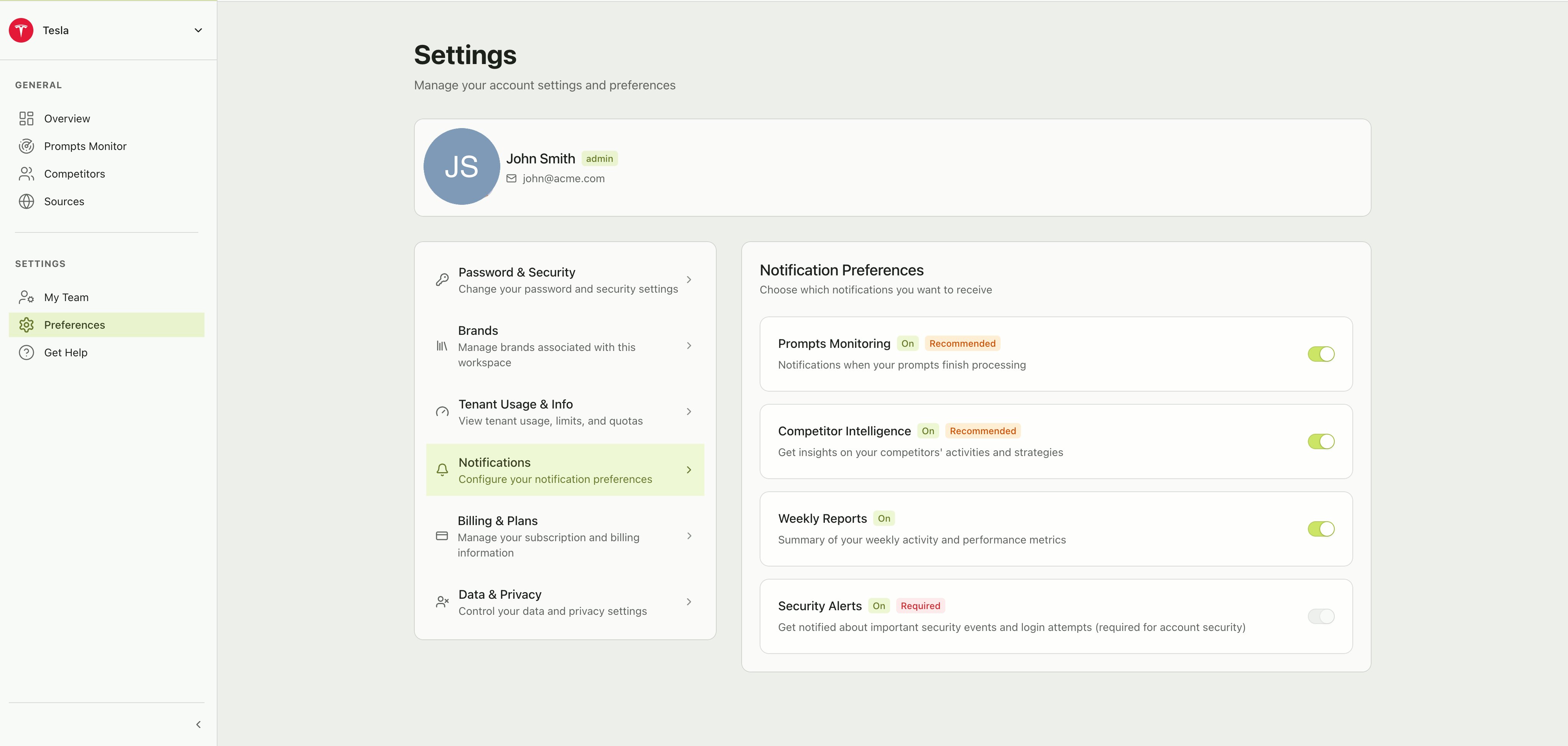 | Notification | Description | Required? |
| --------------------------- | -------------------------------------------------- | ----------------------------- |
| **Prompts Monitoring** | Notifications when your prompts finish processing | Recommended |
| **Competitor Intelligence** | Insights on competitors' activities and strategies | Recommended |
| **Weekly Reports** | Summary of weekly activity and performance metrics | Optional |
| **Security Alerts** | Important security events and login attempts | Required (cannot be disabled) |
Toggle each notification on or off using the switch. Security Alerts are always enabled to protect your account.
## Billing & plans
Manage your subscription, payment methods, and view billing history.
| Notification | Description | Required? |
| --------------------------- | -------------------------------------------------- | ----------------------------- |
| **Prompts Monitoring** | Notifications when your prompts finish processing | Recommended |
| **Competitor Intelligence** | Insights on competitors' activities and strategies | Recommended |
| **Weekly Reports** | Summary of weekly activity and performance metrics | Optional |
| **Security Alerts** | Important security events and login attempts | Required (cannot be disabled) |
Toggle each notification on or off using the switch. Security Alerts are always enabled to protect your account.
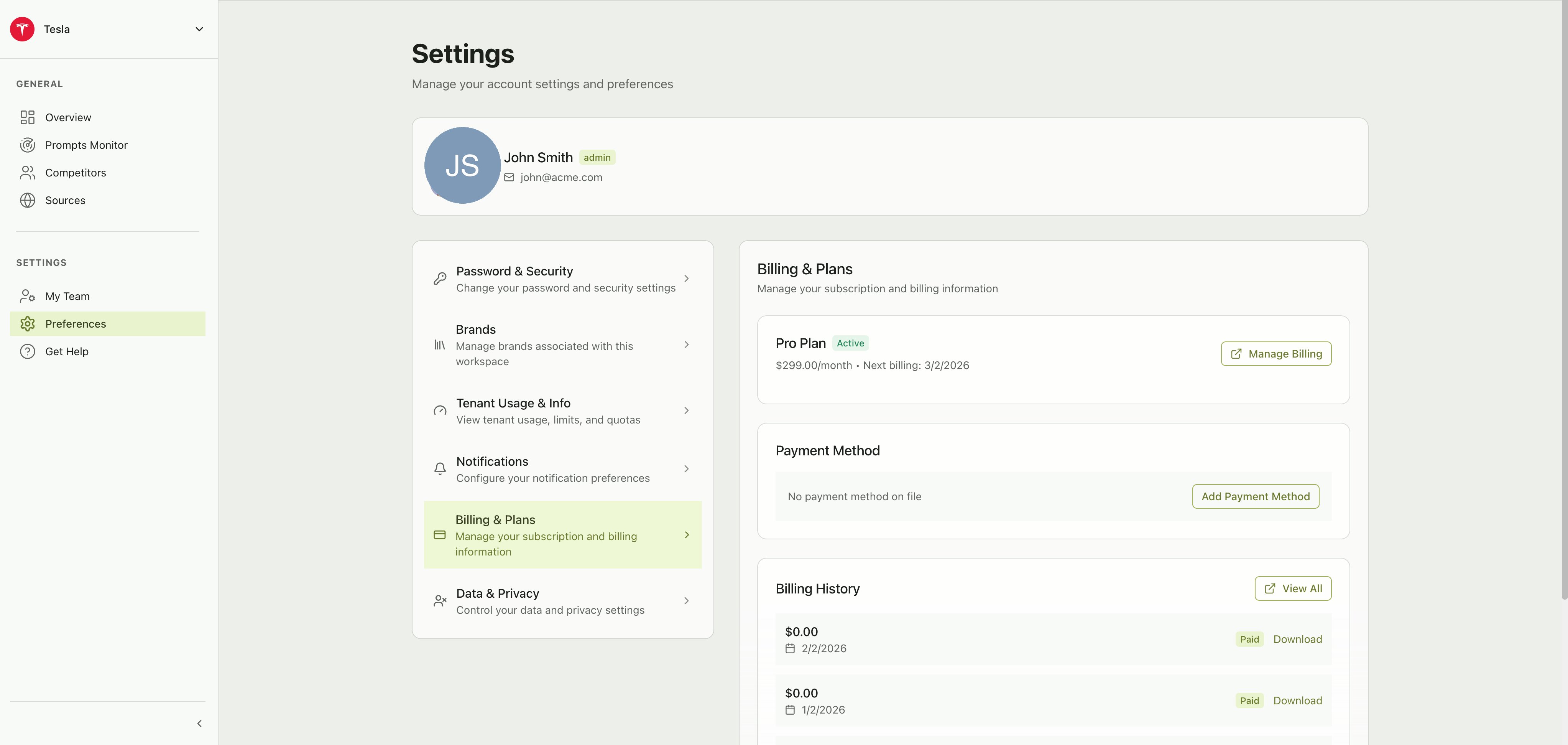
## Billing & plans
Manage your subscription, payment methods, and view billing history.
 ### Current plan
Shows your active subscription plan, monthly cost, and next billing date. Click **Manage Billing** to open the billing portal where you can upgrade, downgrade, or cancel your plan.
### Payment method
View or update the payment method on file. Click **Add Payment Method** to add a credit card or other payment option.
### Billing history
A list of past invoices with the date, amount, payment status, and a **Download** button to save each invoice. Click **View All** to see the complete history.
## Data & privacy
Control how your data is used and manage your privacy preferences.
### Current plan
Shows your active subscription plan, monthly cost, and next billing date. Click **Manage Billing** to open the billing portal where you can upgrade, downgrade, or cancel your plan.
### Payment method
View or update the payment method on file. Click **Add Payment Method** to add a credit card or other payment option.
### Billing history
A list of past invoices with the date, amount, payment status, and a **Download** button to save each invoice. Click **View All** to see the complete history.
## Data & privacy
Control how your data is used and manage your privacy preferences.
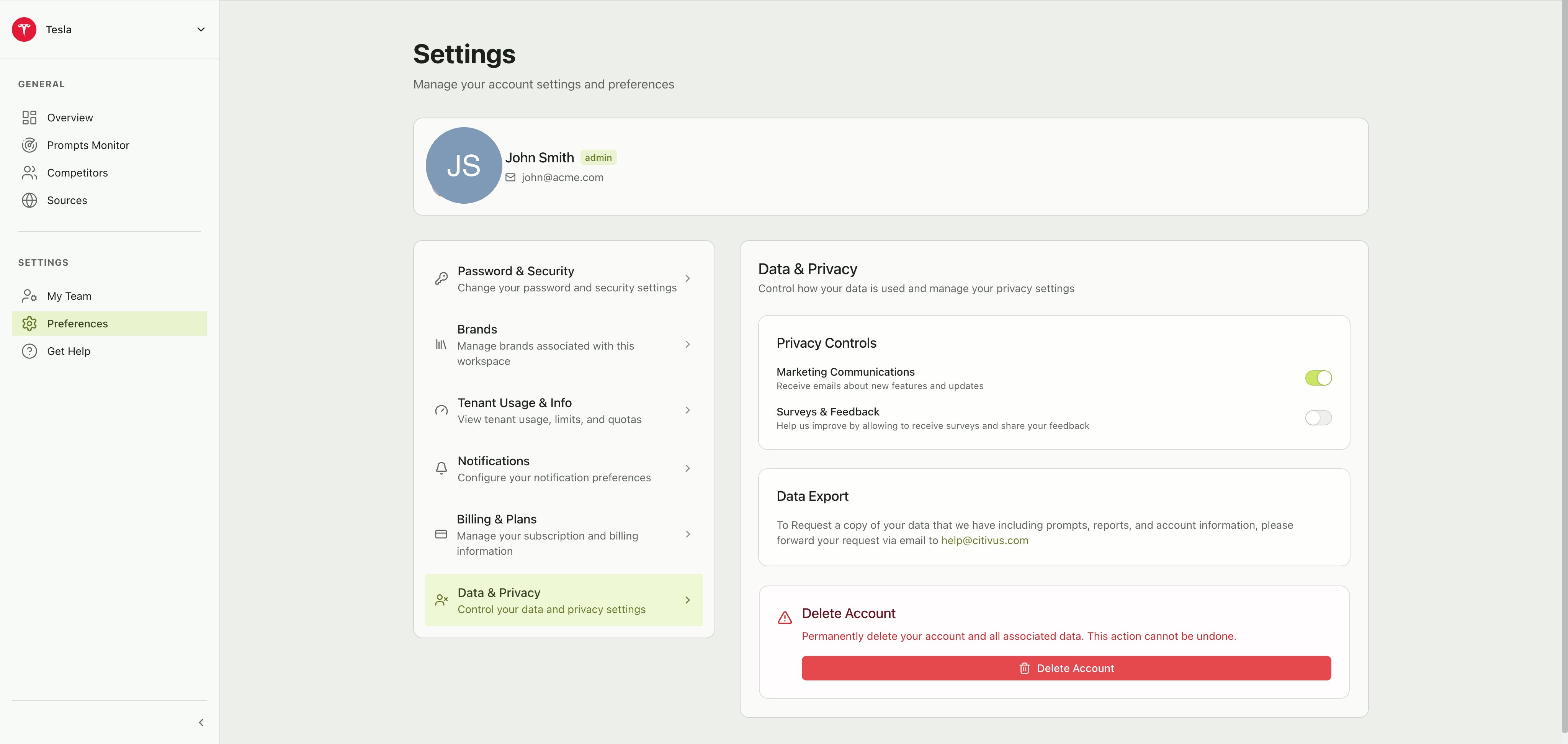 ### Privacy controls
| Setting | Description |
| ---------------------------- | --------------------------------------------------------- |
| **Marketing Communications** | Receive emails about new features and updates |
| **Surveys & Feedback** | Allow Citivus to send surveys to help improve the product |
Toggle each setting on or off as you prefer.
### Data export
To request a copy of all your data (prompts, reports, and account information), send an email to [help@citivus.com](mailto:help@citivus.com).
### Delete account
Permanently delete your account and all associated data. This action cannot be undone.
Deleting your account removes all personal data, workspace associations, and access. If you are the only Admin of a workspace, consider transferring ownership before deleting your account.
### Privacy controls
| Setting | Description |
| ---------------------------- | --------------------------------------------------------- |
| **Marketing Communications** | Receive emails about new features and updates |
| **Surveys & Feedback** | Allow Citivus to send surveys to help improve the product |
Toggle each setting on or off as you prefer.
### Data export
To request a copy of all your data (prompts, reports, and account information), send an email to [help@citivus.com](mailto:help@citivus.com).
### Delete account
Permanently delete your account and all associated data. This action cannot be undone.
Deleting your account removes all personal data, workspace associations, and access. If you are the only Admin of a workspace, consider transferring ownership before deleting your account.