> ## Documentation Index
> Fetch the complete documentation index at: https://docs.citivus.com/llms.txt
> Use this file to discover all available pages before exploring further.
# Setting up your prompts
> Prompts are the questions your customers ask AI — and the foundation of everything Citivus tracks.
In traditional SEO, you optimize for **keywords**. In AI search monitoring, you optimize for **prompts** — the natural-language questions that real people type into ChatGPT, Perplexity, and Google AI Overview.
Your prompts are the single most important part of your Citivus setup. The better your prompts reflect real customer behavior, the more actionable your data will be.
## How prompts work
When you add a prompt to Citivus, here's what happens behind the scenes:
Your prompt is sent to each AI provider you're monitoring (ChatGPT, Perplexity, AI Overview).
A natural-language answer that may mention brands, products, and sources.
Your brand mentions, rank, sentiment, competitor mentions, and cited sources are extracted.
Daily by default, so you can track changes over time.
Each prompt generates one response per provider per run. So if you have 10 prompts running across 3 providers, you'll get **30 data points per day**.
**Prompts vs. keywords** — Keywords are short search terms like "best EV 2026." Prompts are full questions like "Which electric vehicle is best for long-range driving in the USA?" AI assistants respond to conversational questions, not keyword fragments — so your prompts should reflect how people actually talk to AI.
## How AI models process your prompts
AI models don't just match keywords — they understand **intent** and **context**:
* **Intent recognition** — The AI determines what the user is trying to accomplish (compare products, find the best option, understand a topic)
* **Context analysis** — The AI considers geographic context, recency, and the specificity of the question
* **Response generation** — The AI compiles information from its training data and cited sources to generate a comprehensive answer
This means that small changes in prompt wording can significantly change which brands appear and where they rank.
## Anatomy of an effective prompt
The best prompts combine **clear intent** with **specific context**:
```
[Intent: What the user wants to know] + [Context: Specifics that narrow the scope]
```
| Prompt | Intent | Context |
| ----------------------------------------------------------------- | ----------------------- | ------------------------------ |
| "Which electric vehicle is best for long range drive in USA?" | Find the best EV | Long range + USA market |
| "What are the best EV to buy after federal tax credit has ended?" | Purchase recommendation | Post-tax credit context |
| "Best luxury electric SUV for families" | Product comparison | Luxury + SUV + family use case |
Think about the exact questions your ideal customer would type into ChatGPT. Browse Reddit, Quora, and social media to find the real questions people are asking about your industry.
## Preparing your prompt topics
Before creating prompts, organize them into **topic clusters** that cover different aspects of your business:
* "Best \[product category] in 2026"
* "Top \[product type] for \[specific use case]"
* "\[Product A] vs \[Product B] comparison"
* "Is \[your brand] worth it?"
* "What do people think about \[your brand]?"
* "\[Your brand] reviews and reputation"
* "Best \[industry] companies to work with"
* "Top \[industry] trends in 2026"
* "Most innovative \[industry] brands"
* "Where to buy \[product category]"
* "Best deals on \[product type]"
* "Which \[product] should I choose?"
## Creating prompts in Citivus
You can create prompts in three ways:
During onboarding or when adding a new brand, Citivus **analyzes your website** and generates strategic prompt suggestions. These are tailored to your specific brand, industry, and product offerings.
Navigate to **Prompts Monitor** and click **"New Prompt"** to see suggestions and add new prompts manually.
From the **Prompts Monitor** page, click the **"New Prompt"** button. Enter your prompt text, select the AI providers to monitor, and choose the target location.
Each prompt in your list has an **Edit** button. Click it to modify the prompt text, change providers, update the location, or pause monitoring.
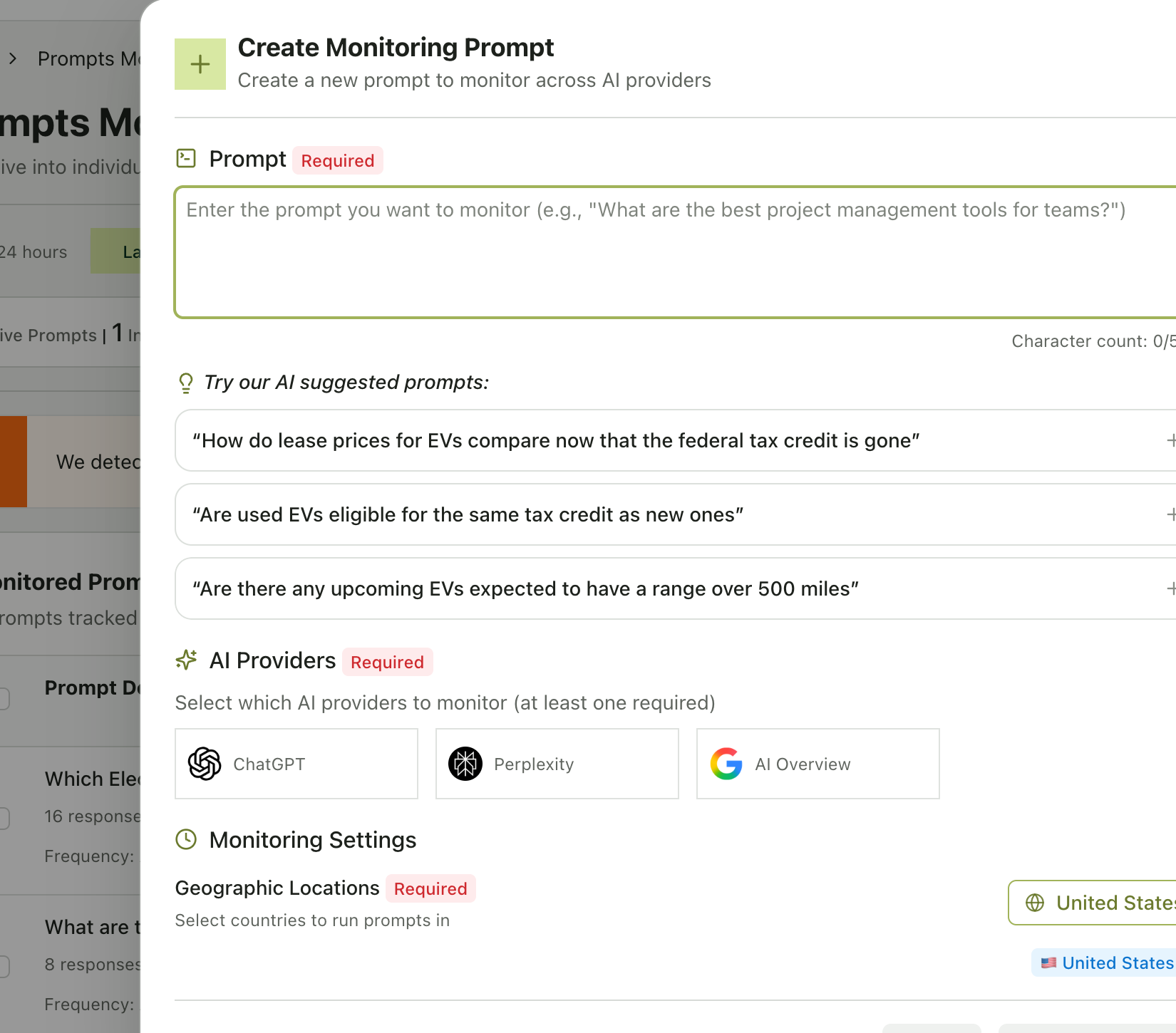 **Provider selection matters.** Each AI provider may give different results for the same prompt. We recommend monitoring across all available providers (ChatGPT, Perplexity, AI Overview) for the most comprehensive picture. You'll see per-provider performance breakdowns on the prompt detail page.
## Understanding prompt status
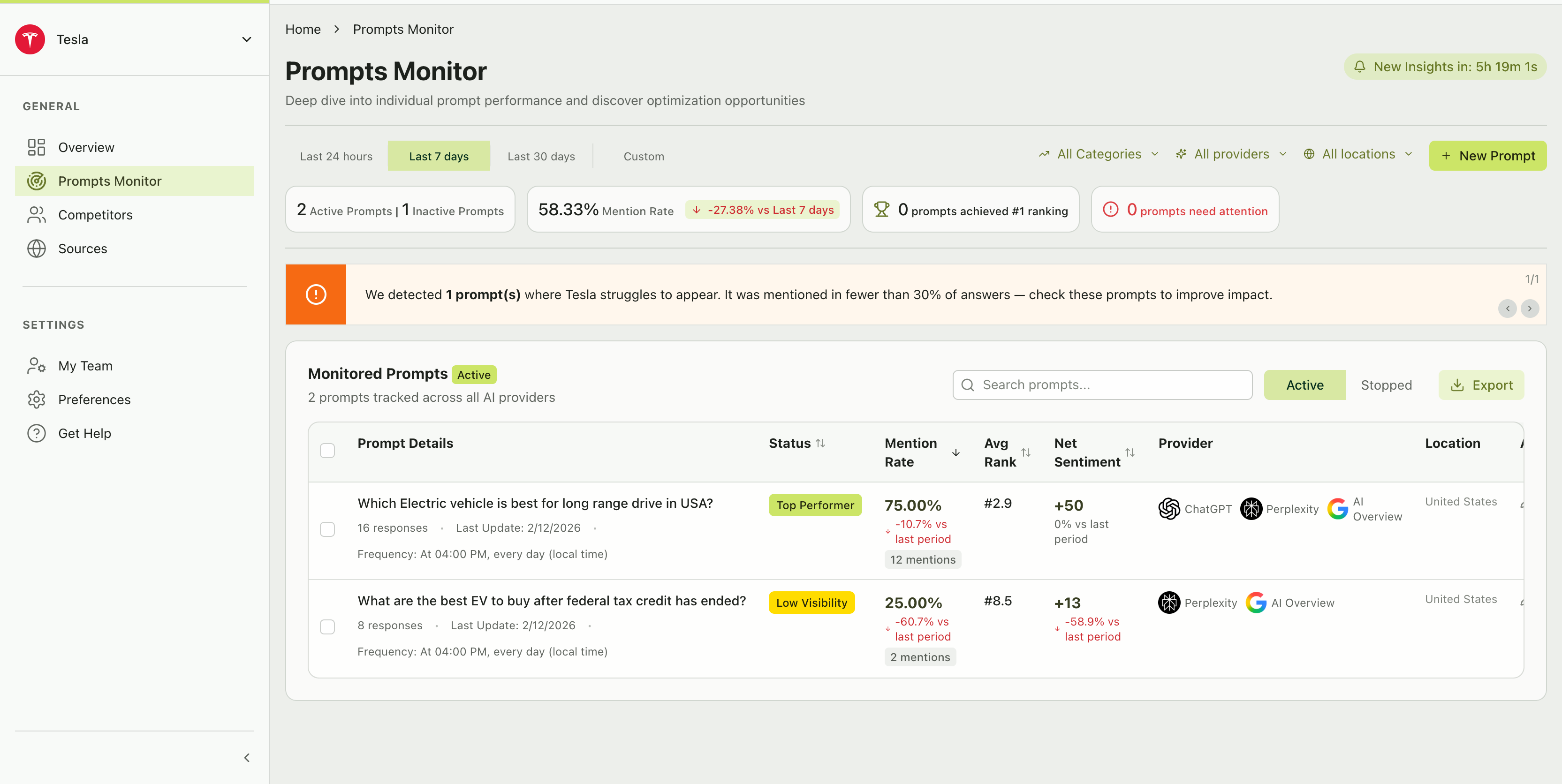
Each prompt has a **status** that tells you how it's performing:
| Status | What it means |
| ------------------ | ------------------------------------------------------------------------ |
| **Top performer** | Your brand has strong mention rates for this prompt — keep it going |
| **Low visibility** | Your brand is mentioned in fewer than 30% of responses — needs attention |
| **Active** | The prompt is running on schedule and collecting data |
| **Stopped** | The prompt is paused and not collecting new data |
On the Prompts Monitor page, you can toggle between **Active** and **Stopped** tabs to manage your prompt library.
**Provider selection matters.** Each AI provider may give different results for the same prompt. We recommend monitoring across all available providers (ChatGPT, Perplexity, AI Overview) for the most comprehensive picture. You'll see per-provider performance breakdowns on the prompt detail page.
## Understanding prompt status
Each prompt has a **status** that tells you how it's performing:
| Status | What it means |
| ------------------ | ------------------------------------------------------------------------ |
| **Top performer** | Your brand has strong mention rates for this prompt — keep it going |
| **Low visibility** | Your brand is mentioned in fewer than 30% of responses — needs attention |
| **Active** | The prompt is running on schedule and collecting data |
| **Stopped** | The prompt is paused and not collecting new data |
On the Prompts Monitor page, you can toggle between **Active** and **Stopped** tabs to manage your prompt library.
 ## Managing prompt limits
Your subscription plan determines how many **active prompts** you can run simultaneously.
* **Active prompts** count toward your plan limit
* **Stopped prompts** do not count toward your limit
* **Deleted prompts** are permanently removed and free up a slot
If you've hit your prompt limit but want to test new prompts, **stop** some lower-priority prompts instead of deleting them. Stopped prompts retain their historical data, so you can reactivate them later without losing anything.
You can view your current usage under **Preferences > Tenant Usage & Info**.
## Prompt run frequency
Citivus runs your prompts **daily** at a set time (shown on each prompt card). This means:
* You get at least one new data point per provider per prompt every day
* Trends become visible after a few days of data collection
* The "Last Update" timestamp on each prompt tells you when the latest run occurred
On the prompt detail page, you'll see the run schedule displayed as: *"Frequency: At 04:00 PM, every day (local time)"*
## What good looks like
After a week of monitoring, you should be able to see:
* Which prompts your brand **consistently appears in** (top performers)
* Which prompts your brand **struggles with** (low visibility / needs attention)
* How your **mention rate trends** over time
* Which **competitors** appear in the same prompts
Use these insights to guide your content strategy, PR efforts, and competitive positioning.
## Managing prompt limits
Your subscription plan determines how many **active prompts** you can run simultaneously.
* **Active prompts** count toward your plan limit
* **Stopped prompts** do not count toward your limit
* **Deleted prompts** are permanently removed and free up a slot
If you've hit your prompt limit but want to test new prompts, **stop** some lower-priority prompts instead of deleting them. Stopped prompts retain their historical data, so you can reactivate them later without losing anything.
You can view your current usage under **Preferences > Tenant Usage & Info**.
## Prompt run frequency
Citivus runs your prompts **daily** at a set time (shown on each prompt card). This means:
* You get at least one new data point per provider per prompt every day
* Trends become visible after a few days of data collection
* The "Last Update" timestamp on each prompt tells you when the latest run occurred
On the prompt detail page, you'll see the run schedule displayed as: *"Frequency: At 04:00 PM, every day (local time)"*
## What good looks like
After a week of monitoring, you should be able to see:
* Which prompts your brand **consistently appears in** (top performers)
* Which prompts your brand **struggles with** (low visibility / needs attention)
* How your **mention rate trends** over time
* Which **competitors** appear in the same prompts
Use these insights to guide your content strategy, PR efforts, and competitive positioning.