> ## Documentation Index
> Fetch the complete documentation index at: https://docs.citivus.com/llms.txt
> Use this file to discover all available pages before exploring further.
# Organizing your setup
> A well-organized Citivus setup means cleaner data and faster insights.
As you add more prompts, competitors, and brands, keeping things organized helps you spot trends faster and make better decisions. This guide covers how to structure your monitoring for maximum clarity.
## Managing multiple brands
Citivus supports **multiple brands** within a single workspace. This is ideal if you:
* Manage multiple products or sub-brands under one company
* Want to monitor different aspects of your business separately
* Need to track parent brand and individual product lines
### Switching between brands
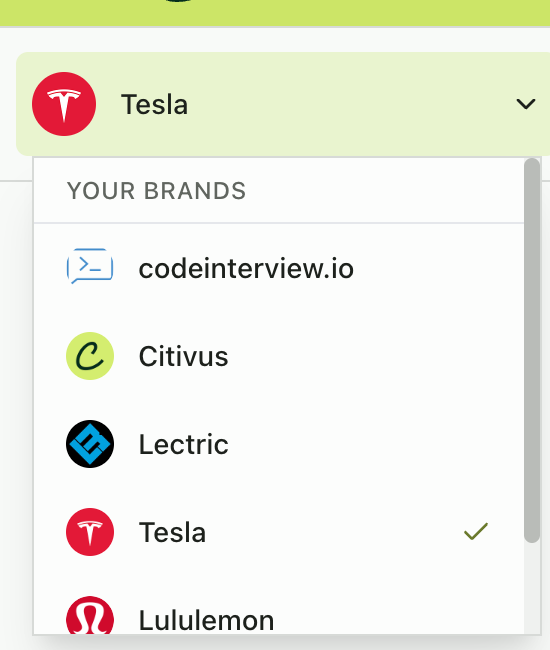
The **brand selector** is located at the top of the sidebar. Click it to switch between your brands — all dashboard data, prompts, competitors, and sources update instantly to reflect the selected brand.
 ### Adding a new brand
To add a brand after initial onboarding:
Click the **brand selector** in the sidebar and select **"Add Brand"**.
Provide your brand name, website, and country.
Review and select AI-suggested prompts (limited by your plan's remaining prompt slots).
Review and select AI-identified competitors.
Insights begin generating within 2-3 minutes.
**Brand limits are governed by your subscription plan.** Each plan allows a specific number of brands. Check your current usage under **Preferences > Tenant Usage & Info**.
## Organizing prompts with categories
As your prompt library grows, **categories** help you group related prompts for easier filtering and analysis.
On the **Prompts Monitor** page, use the **"All Categories"** dropdown to filter prompts by category. Categories let you quickly focus on specific topic areas — like product comparisons, brand reputation, or purchase intent.
### Adding a new brand
To add a brand after initial onboarding:
Click the **brand selector** in the sidebar and select **"Add Brand"**.
Provide your brand name, website, and country.
Review and select AI-suggested prompts (limited by your plan's remaining prompt slots).
Review and select AI-identified competitors.
Insights begin generating within 2-3 minutes.
**Brand limits are governed by your subscription plan.** Each plan allows a specific number of brands. Check your current usage under **Preferences > Tenant Usage & Info**.
## Organizing prompts with categories
As your prompt library grows, **categories** help you group related prompts for easier filtering and analysis.
On the **Prompts Monitor** page, use the **"All Categories"** dropdown to filter prompts by category. Categories let you quickly focus on specific topic areas — like product comparisons, brand reputation, or purchase intent.
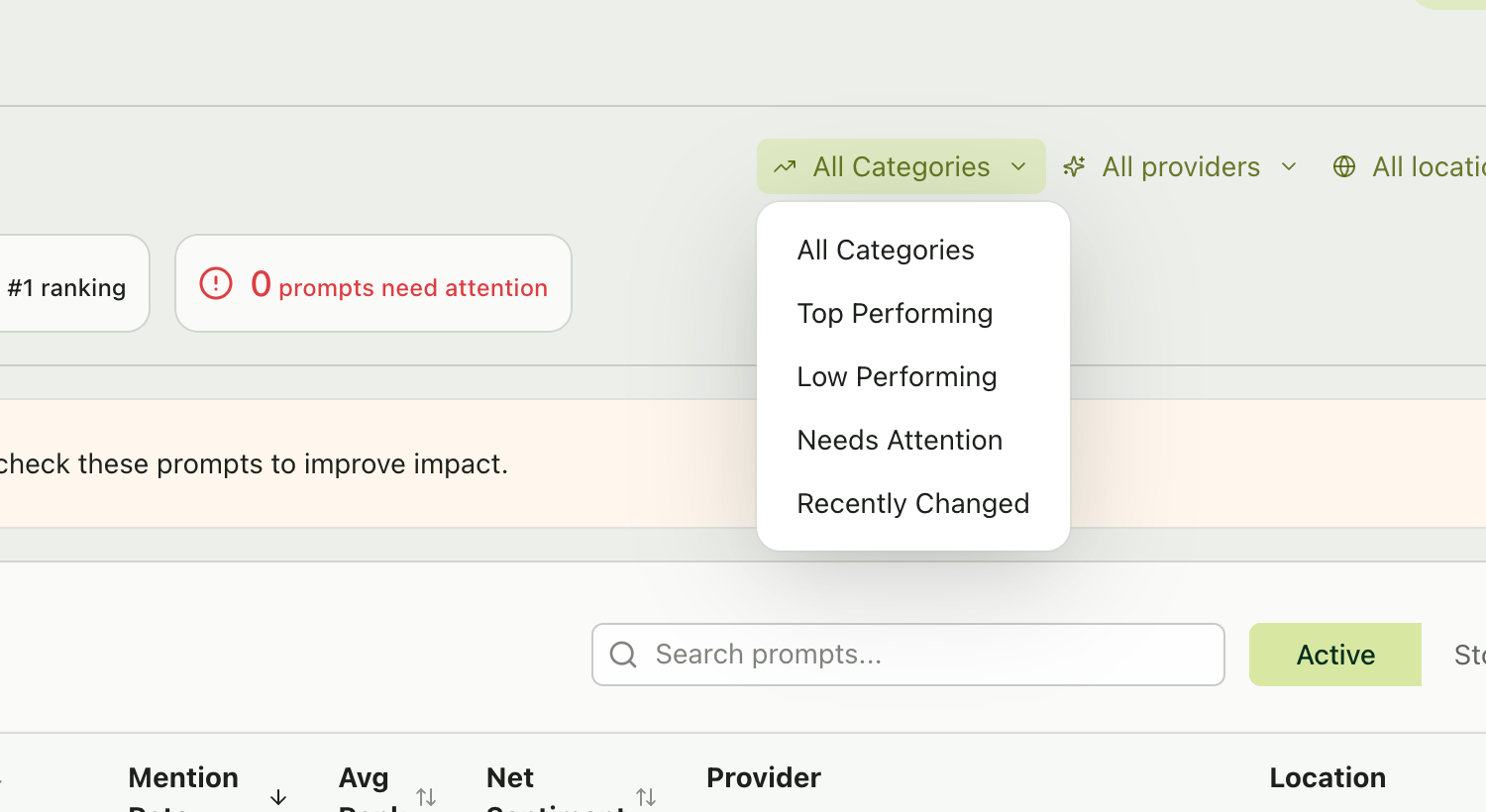 Create categories that match your marketing funnel stages (Awareness, Consideration, Decision) or your product lines. This makes it easy to identify which stage of the customer journey needs the most attention in AI search.
## Choosing your locations
Citivus lets you run prompts from **specific geographic locations**. This matters because AI responses vary by region — a prompt asked from the US may produce different brand mentions and rankings than the same prompt asked from the UK.
You can filter by location across all main pages:
* **Overview** — See metrics for specific locations
* **Prompts Monitor** — Filter the prompt table by location
* **Sources** — View which sources are cited in specific regions
When creating prompts, choose the locations that represent your **primary markets**. If you sell globally, consider running the same prompt from multiple locations to see regional differences.
## Setting up your time ranges
Every data page in Citivus offers **time range filters** that let you control the analysis window:
| Time range | Best for |
| ----------------- | -------------------------------------------------------- |
| **Last 24 hours** | Checking the latest run results and immediate changes |
| **Last 7 days** | Weekly trend analysis and performance reviews |
| **Last 30 days** | Monthly patterns, long-term trends, and reporting |
| **Custom** | Specific date ranges for campaign analysis or deep dives |
Start your day with **Last 24 hours** to see fresh results, then switch to **Last 7 days** for your regular analysis workflow. Use **Last 30 days** for monthly reports and stakeholder updates.
## Provider filtering
Not all AI providers behave the same way. ChatGPT might mention your brand consistently while Perplexity may favor competitors. Use the **provider filter** (available on Overview, Prompts Monitor, and Sources) to isolate performance by platform.
This helps you answer questions like:
* "Which AI platform is most favorable to my brand?"
* "Where should I focus my optimization efforts?"
* "Are there platform-specific content gaps I need to address?"
## Workspace roles and access
If you're working with a team, understanding roles helps you organize who does what:
| Role | Capabilities |
| ---------- | ----------------------------------------------------------------------------------------------- |
| **Admin** | Full access — manage team members, billing, brands, and all settings |
| **Editor** | Can manage prompts, competitors, and view all analytics — cannot manage billing or team members |
You can manage roles from **My Team** in the sidebar.
## Best practices for setup organization
* Begin with 5-10 prompts for your primary brand
* Add competitors as you discover who appears alongside you
* Expand to more prompts and additional brands over time
* Stop prompts that consistently show 0% mention rate after 30 days — they may not be relevant queries
* Update prompt wording if you notice AI models responding differently to slight variations
* Remove competitors who consistently show 0% visibility — they may not be relevant to your space in AI
* Check your dashboard daily for new insights
* Do a deep-dive on prompts weekly to spot trends
* Run a full competitor review monthly
Create categories that match your marketing funnel stages (Awareness, Consideration, Decision) or your product lines. This makes it easy to identify which stage of the customer journey needs the most attention in AI search.
## Choosing your locations
Citivus lets you run prompts from **specific geographic locations**. This matters because AI responses vary by region — a prompt asked from the US may produce different brand mentions and rankings than the same prompt asked from the UK.
You can filter by location across all main pages:
* **Overview** — See metrics for specific locations
* **Prompts Monitor** — Filter the prompt table by location
* **Sources** — View which sources are cited in specific regions
When creating prompts, choose the locations that represent your **primary markets**. If you sell globally, consider running the same prompt from multiple locations to see regional differences.
## Setting up your time ranges
Every data page in Citivus offers **time range filters** that let you control the analysis window:
| Time range | Best for |
| ----------------- | -------------------------------------------------------- |
| **Last 24 hours** | Checking the latest run results and immediate changes |
| **Last 7 days** | Weekly trend analysis and performance reviews |
| **Last 30 days** | Monthly patterns, long-term trends, and reporting |
| **Custom** | Specific date ranges for campaign analysis or deep dives |
Start your day with **Last 24 hours** to see fresh results, then switch to **Last 7 days** for your regular analysis workflow. Use **Last 30 days** for monthly reports and stakeholder updates.
## Provider filtering
Not all AI providers behave the same way. ChatGPT might mention your brand consistently while Perplexity may favor competitors. Use the **provider filter** (available on Overview, Prompts Monitor, and Sources) to isolate performance by platform.
This helps you answer questions like:
* "Which AI platform is most favorable to my brand?"
* "Where should I focus my optimization efforts?"
* "Are there platform-specific content gaps I need to address?"
## Workspace roles and access
If you're working with a team, understanding roles helps you organize who does what:
| Role | Capabilities |
| ---------- | ----------------------------------------------------------------------------------------------- |
| **Admin** | Full access — manage team members, billing, brands, and all settings |
| **Editor** | Can manage prompts, competitors, and view all analytics — cannot manage billing or team members |
You can manage roles from **My Team** in the sidebar.
## Best practices for setup organization
* Begin with 5-10 prompts for your primary brand
* Add competitors as you discover who appears alongside you
* Expand to more prompts and additional brands over time
* Stop prompts that consistently show 0% mention rate after 30 days — they may not be relevant queries
* Update prompt wording if you notice AI models responding differently to slight variations
* Remove competitors who consistently show 0% visibility — they may not be relevant to your space in AI
* Check your dashboard daily for new insights
* Do a deep-dive on prompts weekly to spot trends
* Run a full competitor review monthly